
Custom Text Lists
Overview
Our Text Moderation API works out-of-the-box to detect and filter profanity in multiple languages. If you need to add your own list of expressions or words that you want to filter, such as community-specific terms, you can do so by creating a custom text list.
Each text list has two parts:
- a blacklist: text items that should be flagged, in addition to what the engine already detects
- a whitelist: text items that should always be accepted, even if the engine would otherwise flag them
To start using custom text lists, you need to:
- Create a new text list directly from your dashboard.
- Add the text list id to subsequent API requests. Please see below for further details.
Text lists apply to rule-based moderation (mode=rules) and username moderation (mode=username). They are ignored by ML models (mode=ml).
Create a Text List
To create a new text list, go to the dedicated page on your dashboard.
Once your text list has been created, you will have the opportunity to add entries to the text list.
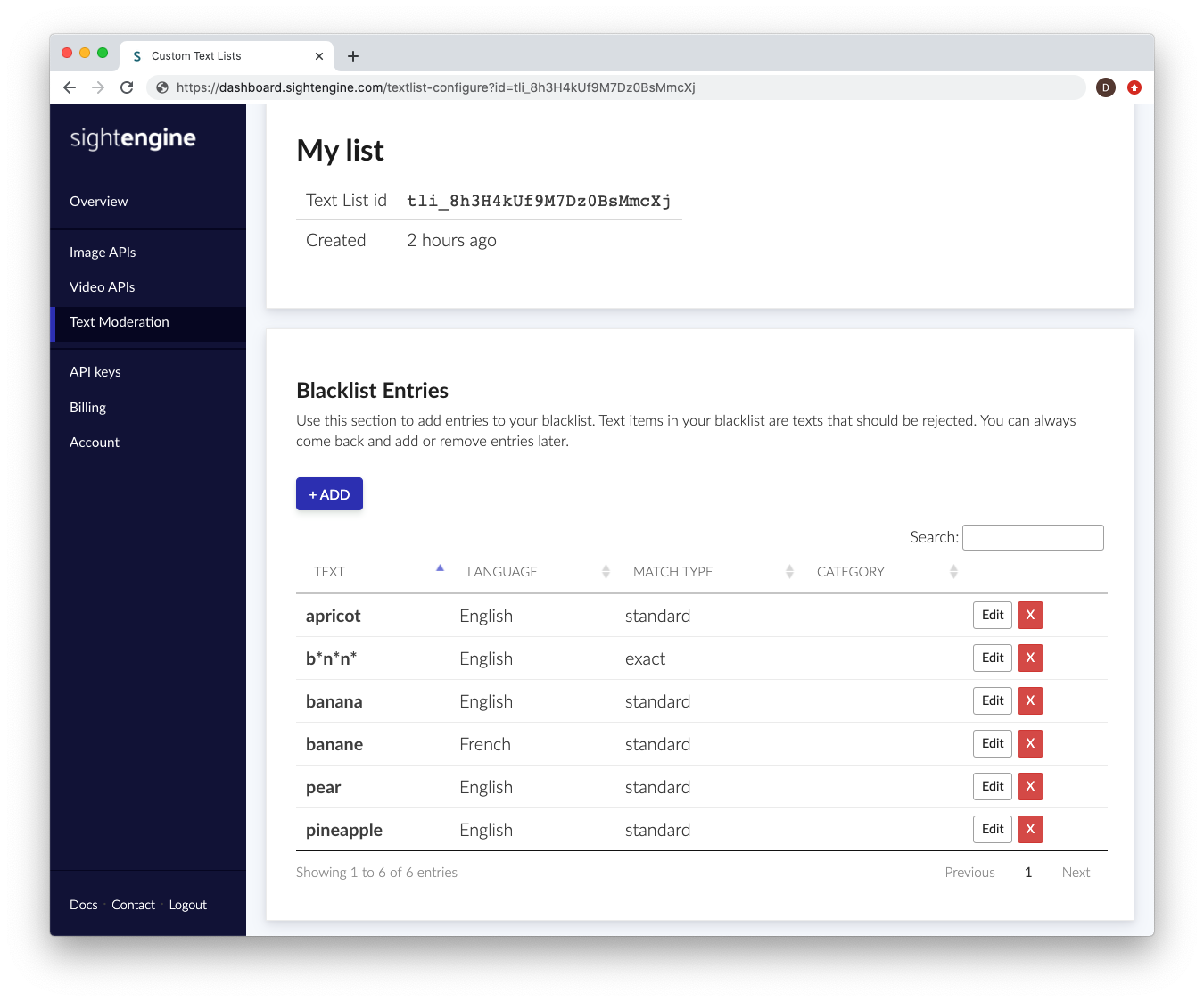
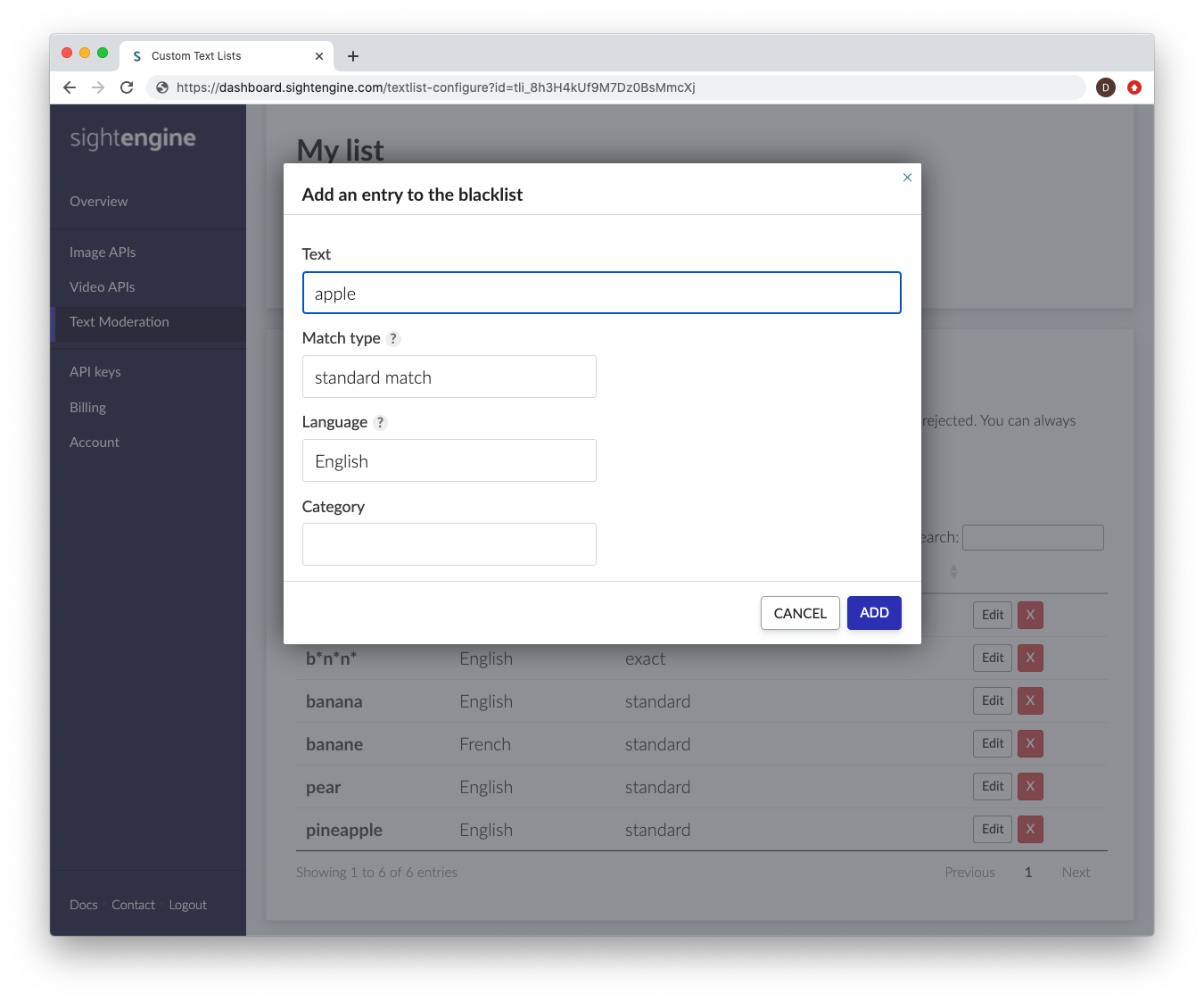
Each entry is a text item that you want to detect, along with meta-data to help our engine determine how and when this entry should be detected. The following information will be needed:
- Text: this is the text item you want to detect.
- Language: this is the language to which the text item applies. If it appears in a text item with a different language, it will not be flagged. If you need a text item to be detected in all languages, select all
- Match type: this is the way the detection engine should detect. Choose exact match if you want the engine to detect the exact string, with no modifications (apart from case modifications).
Choose standard match if you want the engine to detect variations such as phonetic variations, repetitions, typos, leet speak etc... This will typically cover millions of variations and make sure your users cannot simply obfuscate the word to fool the engine. - Category: this is a suggested categorization of the text item, to help you sort and filter entries.
While most users only need to create a single text list, you can create multiple text lists to apply different moderation criteria to different types of text items.
Use a Text List
Requests are the same as for Text Moderation, except that you will need to add the text list id to the request data. The text list id can be found on your dashboard. It is a string that starts with tli_.
Let's say you have set up a blacklist to filter the word "banana" in english (standard match type) and want to moderate the following sentence: "See the b@n@nA here!". Here is how you would do the API request:
curl -X POST 'https://api.sightengine.com/1.0/text/check.json' \
  -F 'text=See the b@n@nA here!' \
  -F 'lang=en' \
  -F 'list={textlist_id}' \
  -F 'mode=rules' \
  -F 'api_user={api_user}' \
  -F 'api_secret={api_secret}'
# this example uses requests
import requests
import json

data = {
  'text': 'See the b@n@nA here!',
  'mode': 'rules',
  'lang': 'en',
  'list': '{textlist_id}',
  'api_user': '{api_user}',
  'api_secret': '{api_secret}'
}
r = requests.post('https://api.sightengine.com/1.0/text/check.json', data=data)

output = json.loads(r.text)
$params = array(
  'text' => 'See the b@n@nA here!',
  'lang' => 'en',
  'list' => '{textlist_id}',
  'mode' => 'rules',
  'api_user' => '{api_user}',
  'api_secret' => '{api_secret}',
);

// this example uses cURL
$ch = curl_init('https://api.sightengine.com/1.0/text/check.json');
curl_setopt($ch, CURLOPT_POST, true);
curl_setopt($ch, CURLOPT_RETURNTRANSFER, true);
curl_setopt($ch, CURLOPT_POSTFIELDS, $params);
$response = curl_exec($ch);
curl_close($ch);

$output = json_decode($response, true);
// this example uses axios and form-data
const axios = require('axios');
const FormData = require('form-data');

data = new FormData();
data.append('text', 'See the b@n@nA here!');
data.append('lang', 'en');
data.append('list', '{textlist_id}');
data.append('mode', 'rules');
data.append('api_user', '{api_user}');
data.append('api_secret', '{api_secret}');

axios({
  url: 'https://api.sightengine.com/1.0/text/check.json',
  method:'post',
  data: data,
  headers: data.getHeaders()
})
.then(function (response) {
  // on success: handle response
  console.log(response.data);
})
.catch(function (error) {
  // handle error
  if (error.response) console.log(error.response.data);
  else console.log(error.message);
});
See request parameter description
| Parameter | Type | Description |
| text | string | UTF-8 encoded text to moderate |
| mode | string | comma-separated list of modes. Modes are rules for the rule-based model, ml for ML models or username to moderate usernames (up to 128 characters) |
| categories | string | comma-separated list of categories to check. Possible values: profanity, personal, link, drug, weapon, violence, self-harm, medical, extremism, spam, content-trade, money-transaction (optional) |
| lang | string | comma-separated list of target languages |
| opt_countries | string | comma-separated list of target countries for phone number detection (optional) |
| opt_phone | string | flag to activate the paranoid mode for phone number detection (optional) |
| list | string | id of a custom list to be used for rule-based moderation (optional) |
| api_user | string | your API user id |
| api_secret | string | your API secret |
The JSON response contains a new field named blacklist. This field contains the list of matches (if any) for your blacklist, along with the positions within the text string.
{
  "status": "success",
  "request": {
    "id": "req_6cujQglQPgGApjI5odv0P",
    "timestamp": 1471947033.92,
    "operations": 1
  },
  "profanity": {
    "matches": []
  },
  "personal": {
    "matches": []
  },
  "link": {
    "matches": []
  },
  "blacklist": {
    "matches": [
      {
        "match": "banana",
        "start": 8,
        "end": 13
      }
    ]
  }
}
The text list that you provide is used in addition to all the standard checks that are done by our Text Moderation Engine. This means that whenever you use a blacklist, you will get both standard moderation results (for profanity, personal information, links...), and an additional category listing your blacklist matches.
Whitelists
Use the whitelist to accept text items that are legitimate on your platform but would otherwise be flagged, such as community-specific words, names or slang. Whitelist entries are added from the Whitelist Entries section of your text list on the dashboard. Like blacklist entries, each entry applies to one language, or to all languages.
There is nothing to change in your requests: when you provide the text list id, both the blacklist and the whitelist are applied. Any match that corresponds to a whitelisted item is removed from the response.
- The whitelist applies to profanity matches, to the matches of additional categories (such as drug or weapon) and to your own blacklist matches. It does not remove personal information or link matches.
- Whitelisting a term does not whitelist the shorter terms it contains. For instance, if sexy is whitelisted, the word sex will no longer be flagged within sexy, but it will still be flagged when it is used on its own.
Any other needs?
See our full list of Text models for details on other filters and checks you can run on your text content. You might also want to check our Image & Video models to moderate images and videos. This includes moderation of text in images/videos.